> For the complete documentation index, see [llms.txt](https://docs.omnileads.net/llms.txt). Markdown versions of documentation pages are available by appending `.md` to page URLs; this page is available as [Markdown](https://docs.omnileads.net/english/instagram-settings/message-templates-and-time-groups.md).
# Message Templates and Time Groups
To properly configure the Instagram Messenger channel, you must first have a Business Hours Group and a Message Templates Group.
On the one hand, the time group will define the operational window in which OMniLeads will be able to receive messages and route them to the service agents. On the other hand, the group of templates will store a set of predefined messages that will serve as a "quick response" for agents, with the aim of streamlining management.
## Creating Message Templates
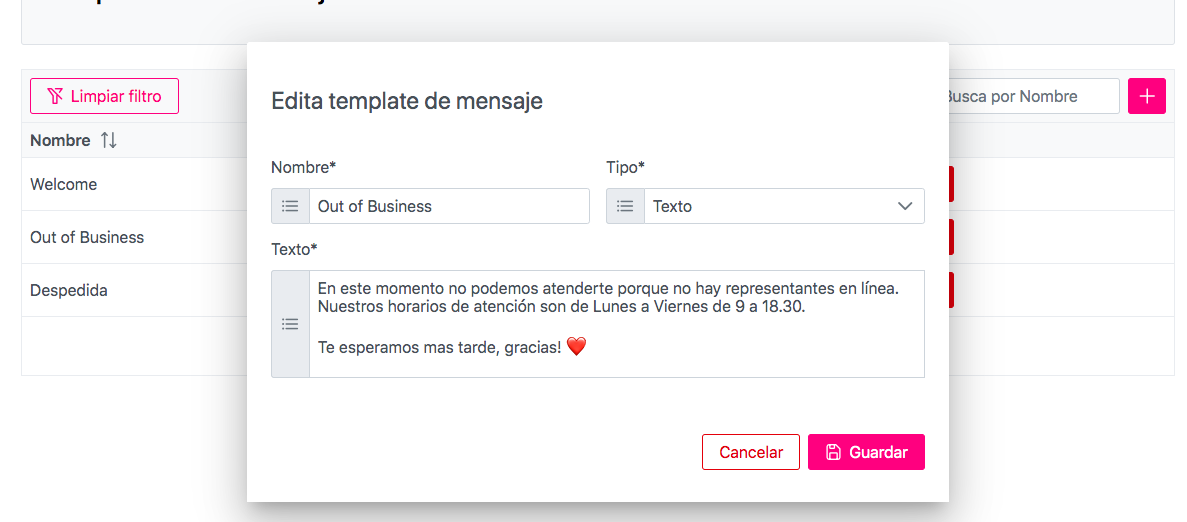
To create Message Templates, go to the Resources Menu -> Message Templates and click on the "+" button.
## Creating a Template Group
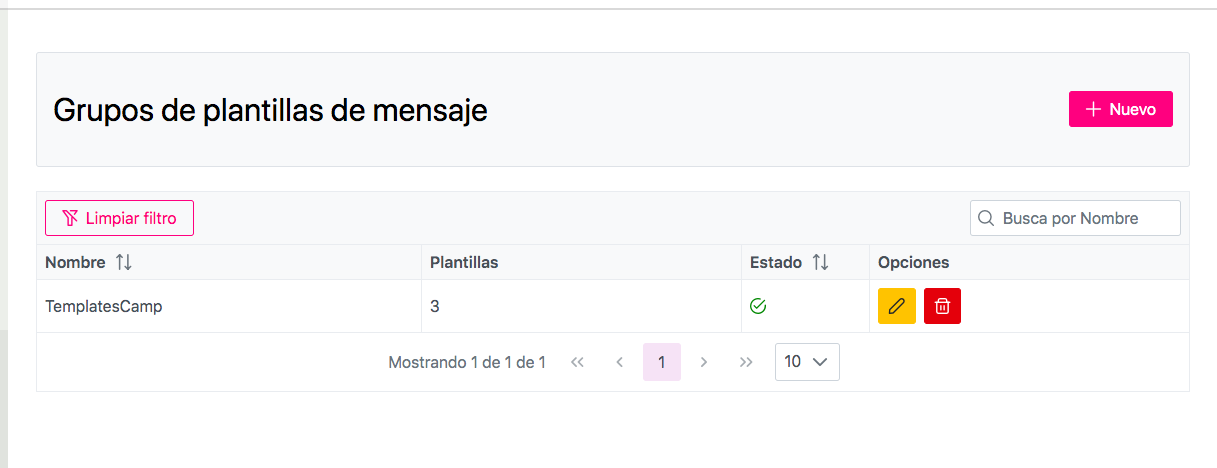
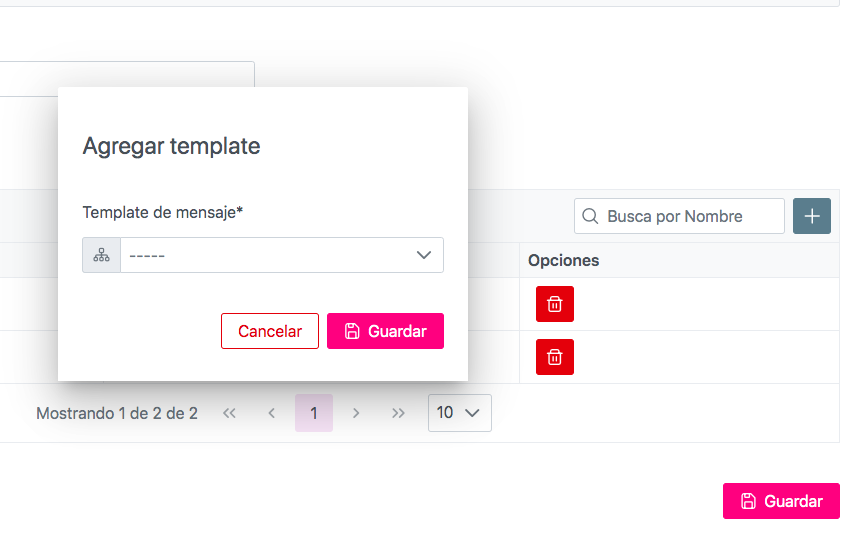
To create a Template Group, go to the Resources menu -> Message Template Group and click the "+New" button. From there, you can add Message Templates and then make them available in your preferred Campaign.
## Creating a Group Schedule for Instagram Customer Service
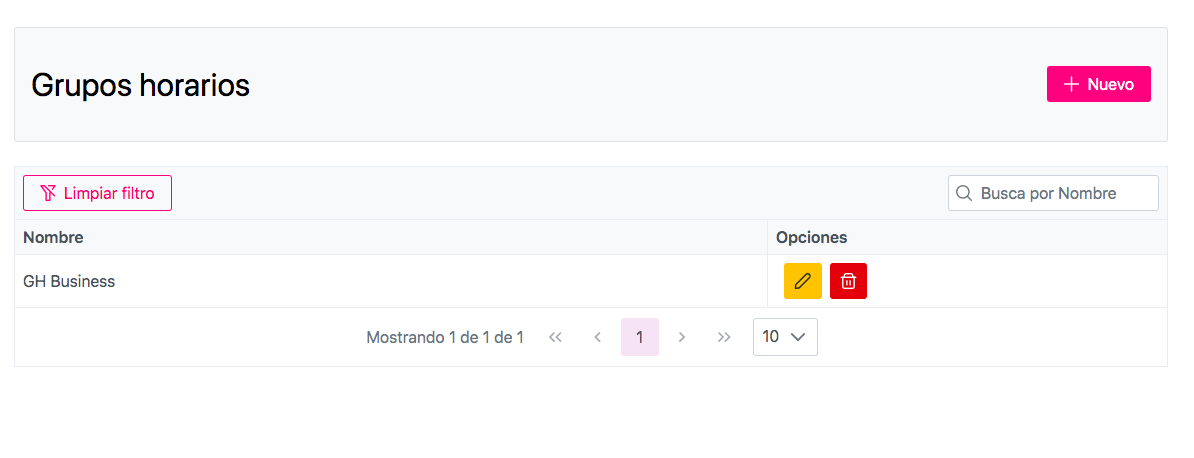
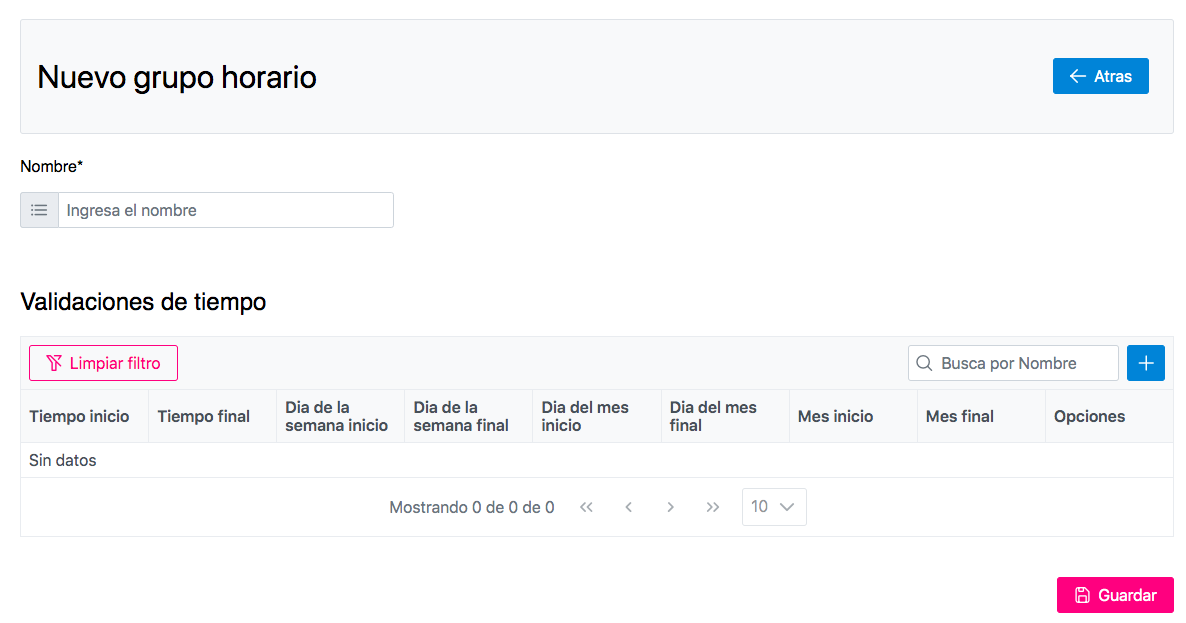
To create a Time Group, go to the Resources Menu -> Time Groups and click the "+New" button. From there, you can add Operational Time Slots to alert the user about Business Hours.
To activate the Social Network channel in a campaign, you can follow the steps in the section on [Campañas de Instagram](broken://pages/owFtDClyfwa7M2qoKYr2). To see an agent in action, you can visit the section of [Mensajes de Instagram](broken://pages/BCILzrzK2PLTmj63mSq5).
---
# Agent Instructions
This documentation is published with GitBook. GitBook is the documentation platform designed so that both humans and AI agents can read, navigate, and reason over technical content effectively. Learn more at gitbook.com.
## Querying This Documentation
If you need additional information that is not directly available in this page, you can query the documentation dynamically by asking a question.
Perform an HTTP GET request on the current page URL with the `ask` query parameter, and the optional `goal` query parameter:
```
GET https://docs.omnileads.net/english/instagram-settings/message-templates-and-time-groups.md?ask=&goal=
```
`ask` is the immediate question: it should be specific, self-contained, and written in natural language.
`goal` is optional and describes the broader end goal you are ultimately trying to accomplish on behalf of the user. GitBook uses it to tailor the answer towards what is most useful for that goal.
The response will contain a direct answer to the question and relevant excerpts and sources from the documentation.
Use this mechanism when the answer is not explicitly present in the current page, you need clarification or additional context, or you want to retrieve related documentation sections.