> For the complete documentation index, see [llms.txt](https://docs.omnileads.net/llms.txt). Markdown versions of documentation pages are available by appending `.md` to page URLs; this page is available as [Markdown](https://docs.omnileads.net/english/ldap-authentication.md).
# LDAP Authentication
## External Authentication Settings
For operations requiring user authentication via external systems, OmniLeads adds authentication via protocol starting with Official Release 1.32. [LDAP (Lightweight Directory Access Protocol)](https://es.wikipedia.org/wiki/Protocolo_ligero_de_acceso_a_directorios).
This authentication method allows the platform to authenticate each user access through an external LDAP service, such as [OpenLDAP](https://www.openldap.org/) or [Microsoft Active Directory](https://learn.microsoft.com/en-us/previous-versions/windows/desktop/ldap/lightweight-directory-access-protocol-ldap-api).
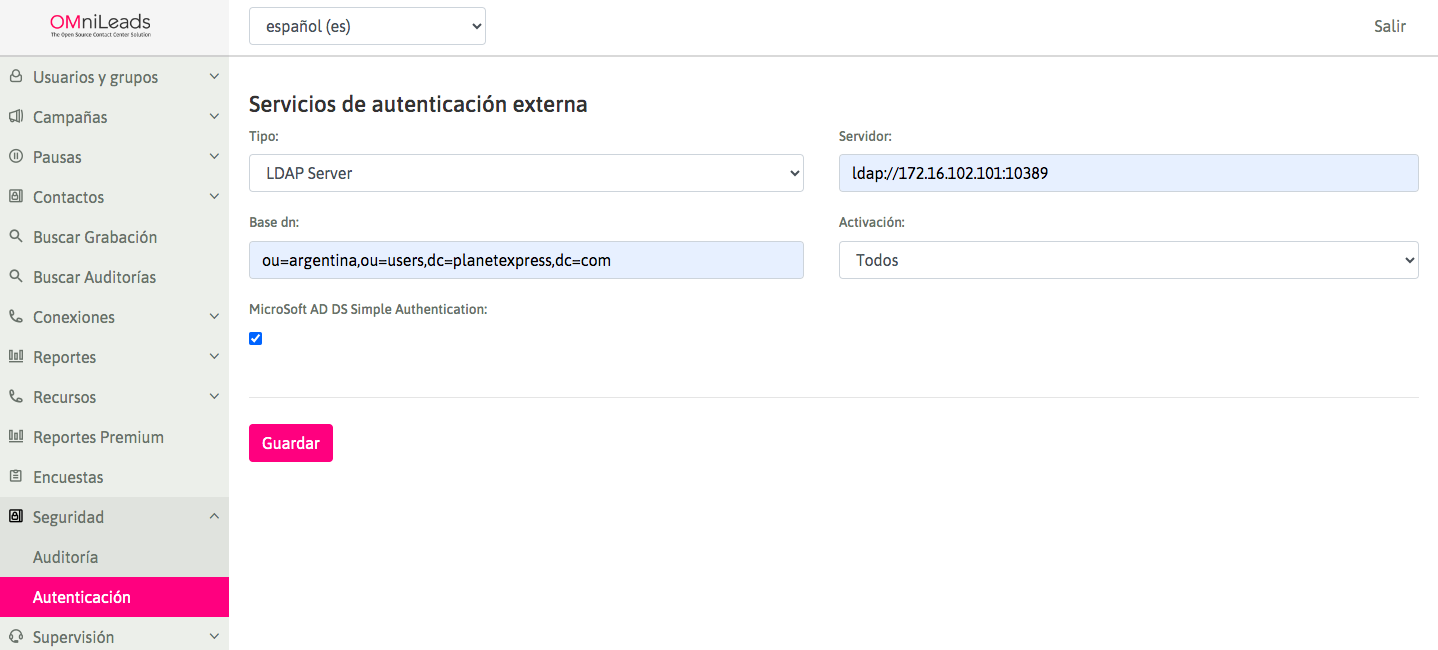
To configure LDAP-based External Authentication, the administrator must go to the Security → Authentication menu and configure the options corresponding to their environment:
* Type: In which you will select LDAP (in future releases, other external authentication mechanisms will be added).
* Server: The server's contact URI, prepending protocol and specifying IP address or FQDN (full hostname) and port, as shown in the image.
* Base DN: Distinguished Name, describes the base path in the information tree that will lead the protocol to the desired search result.
* Activation: Feature activation option.
* Simple Authentication AD checkbox: This checkbox uses username formats such as user\@domain when joining LDAP services based on Microsoft Active Directory.
In the example, “172.16.102.101” refers to the Network Address of the server where the external authentication Backend is hosted. ([OpenLdap](https://openldap.org/) o [Microsoft Active Directo](https://learn.microsoft.com/es-es/windows-server/identity/ad-ds/get-started/virtual-dc/active-directory-domain-services-overview)[ry](https://learn.microsoft.com/es-es/windows-server/identity/ad-ds/get-started/virtual-dc/active-directory-domain-services-overview)). In turn, “:10389” indicates the port where said service is exposed.
On the other hand, the BaseDN field refers to the “Distinguished Name” that will be used as a base to quickly explore the DIT (Directory Information Tree) and find the search result.
In the example, the string “dc=planetexpress, dc=com” comprises DC (Domain Access Element) fields used by the Domain Name System (DNS) map. However, this field can be as extensive as required, such as Company Name (O), Organizational Units (OU), and/or Common Name (cn) for user groups.
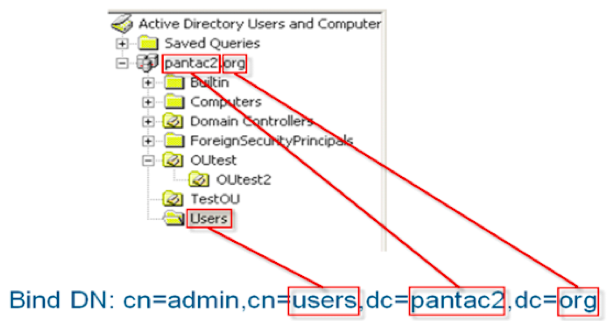
Below is an example based on [Microsoft Active Directory](https://learn.microsoft.com/en-us/previous-versions/windows/desktop/ldap/lightweight-directory-access-protocol-ldap-api). If a user's account is in the Users ldap container or resource, the Base DN binding information would be: “cn=users,dc=pantac2,dc=org”.
In this case, by activating the Simple Authentication checkbox described above, the credentials transmitted to Active Directory are expressed in the format username\@domain, where "domain" is replaced by the domain access fields -DC- (, in the example).
Ejemplo de Nombre Distinguido Base
## Activation Methods
When activating authentication via LDAP protocol, the activation mechanisms can be:
* All: All users will be configured with external authentication by default.
* Everyone except Admin: all users will be configured with external authentication by default, except for the system Admin user.
* Manual (default active): Each new user will automatically inherit external authentication upon registration in the system. However, the administrator can modify this user's configuration at any time.
* Manual (default inactive): Each new user will inherit "Legacy" authentication upon registration in the system. However, the administrator can modify the user's configuration at any time.
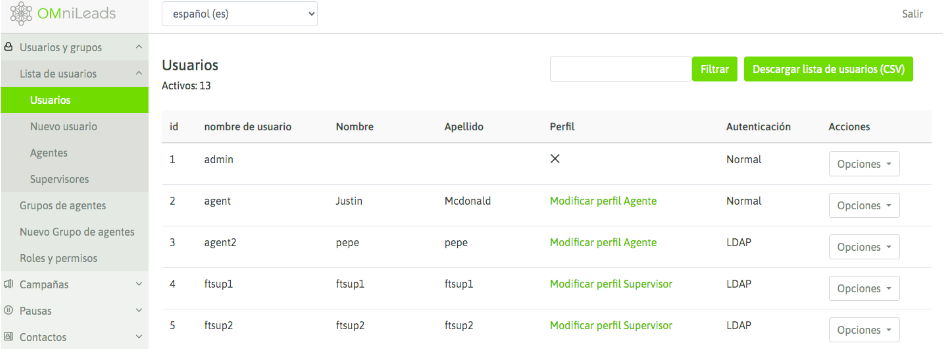
To verify user authentication settings, simply go to the System Users view and check the Authentication column, as shown in the following image:
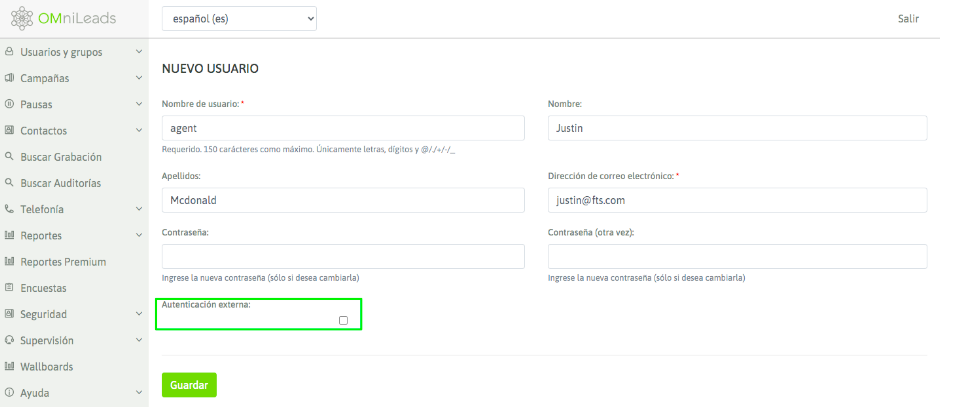
In turn, both to create new users and to edit existing ones, the administrator can modify their access to the system through the detailed user view.
External authentication can be enabled in the user view provided that an external authentication service is configured in the system's Security menu, as explained in the previous section:
## Authenticating against LDAP services:
If External System Authentication is enabled on a user and the latter logs into the system, OMniLeads will use that External Authentication Backend to access it.
IMPORTANT: Since OMniLeads delegates authentication to another entity, it is important that the user is created in the external directory system so that authentication is carried out consistently.
If the authentication process is not successful, the user will receive an access error message; otherwise, they will be able to use the platform normally.
In the event that the LDAP service is down and the Admin user also uses LDAP as their access method, they will have a chance to regain access to the system using a command executed by the operating system's root user (superuser):
`source /opt/omnileads/virtualenv/bin/activate`
*`cd /opt/omnileads/ominicontacto`*
*`python3 manage.py desactivar_autenticacion_externa`*